

AI Glare Remover

Drag and drop or click to upload your photo.
No image handy? Try a sample
JPGPNGWebP≤ 20MB

Remove Glare from Photo — Free AI Glare Remover

Reduce glare spots and reflections on eyeglass lenses, the glass over a framed photo, a glossy page, or a screen. Upload a photo and get a PNG back. Works best when the detail under the glare is still partly visible.

Works on JPEG, PNG, WEBP · Free to try · PNG download

Glare is light bouncing off glass or a glossy surface straight into the lens: a bright patch on someone's glasses, a window reflected in the glass over a framed print, a flash hotspot on a notebook page, or a lamp reflected on a screen. CleanRemover's glare remover asks an AI image model to remove only the glare and reflections and restore what is underneath, while keeping faces, eyes, frames, text, and colors the same. It works best when the glare is partial and you can still see some detail through it. Where the glare completely hides something, the model has to guess, so a hidden eye, word, or object may come back looking different from the original. Check the result with the slider before you use it.

How to Remove Glare from a Photo in 3 Steps

Upload, remove, compare. There is nothing to brush or select.

1

Step 1 — Upload Your Photo

Drag and drop your image or click to upload. JPEG, PNG, and WEBP files up to 20 MB are supported.

2

Step 2 — Click "Remove Glare"

The AI looks for glare spots and reflections and tones them down to match the rest of the photo. It usually takes around 30 seconds.

3

Step 3 — Compare and Download

Drag the slider to compare before and after, especially around eyes and text, then download the result as a PNG. No watermark is added.

Real Results from the Glare Remover

Every "after" image on this page is the unretouched output of the same AI model and instruction the tool uses, generated in our November 2026 test. They are not live results from your upload. We only resized each output to match the original so the slider lines up. The four examples below had glare we added digitally to clean photos, so we could measure the result against the original; each is labeled. Real glare can be harder, and the next section shows where it went wrong.

Reflection on Eyeglasses (Glare Added for This Test)

We laid a semi-transparent city reflection across both lenses of a portrait. After removal, the eyes behind the lenses are clear again and the frames are unchanged. Inside the lenses, the average difference from the clean original dropped from 55 to 10 (on a 0–255 scale); outside the lenses it stayed under 1. The eyes were still visible through this glare, which is why it worked. Base photo: MrCambiata, Wikimedia Commons, CC BY-SA 4.0; cropped, glare added, and processed by us. These images are shared under the same license.
Window Reflection on a Framed Photo (Glare Added for This Test)

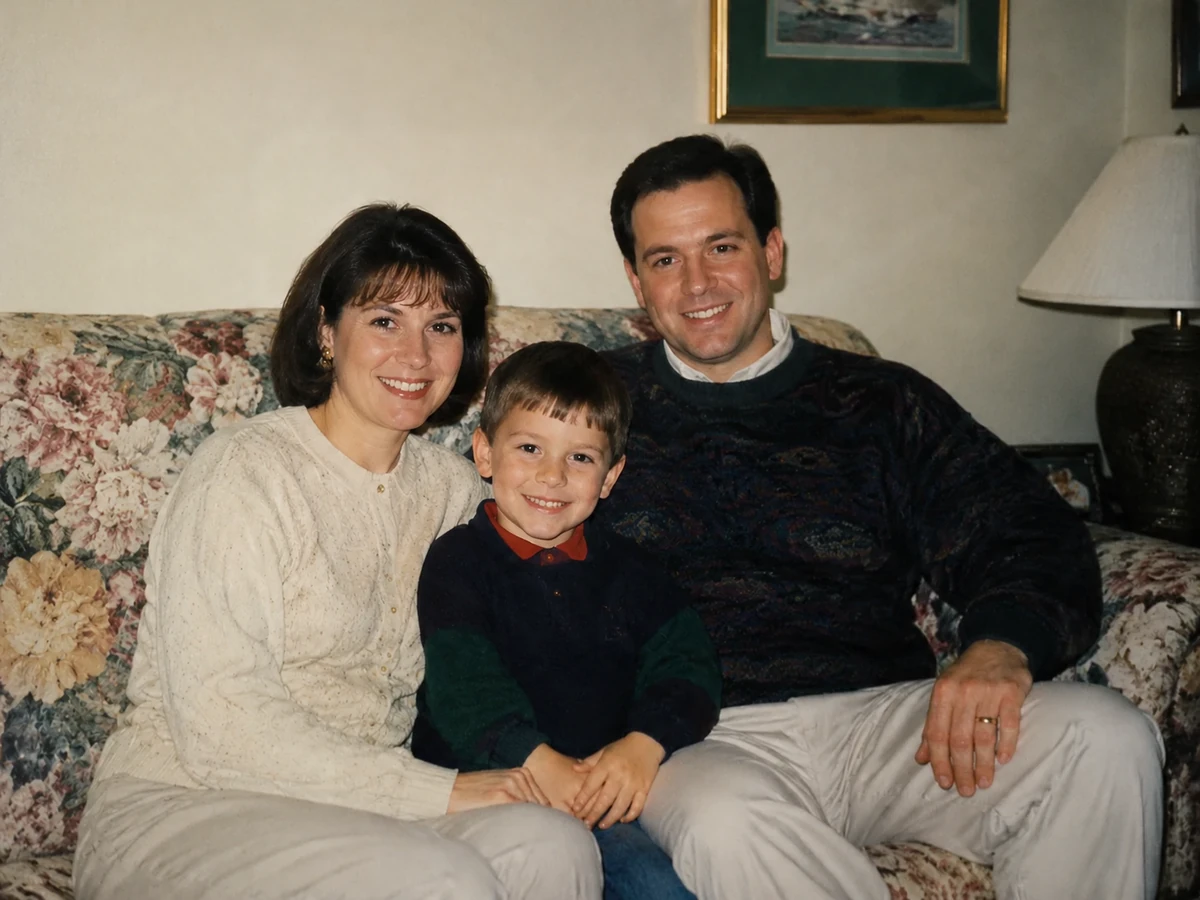
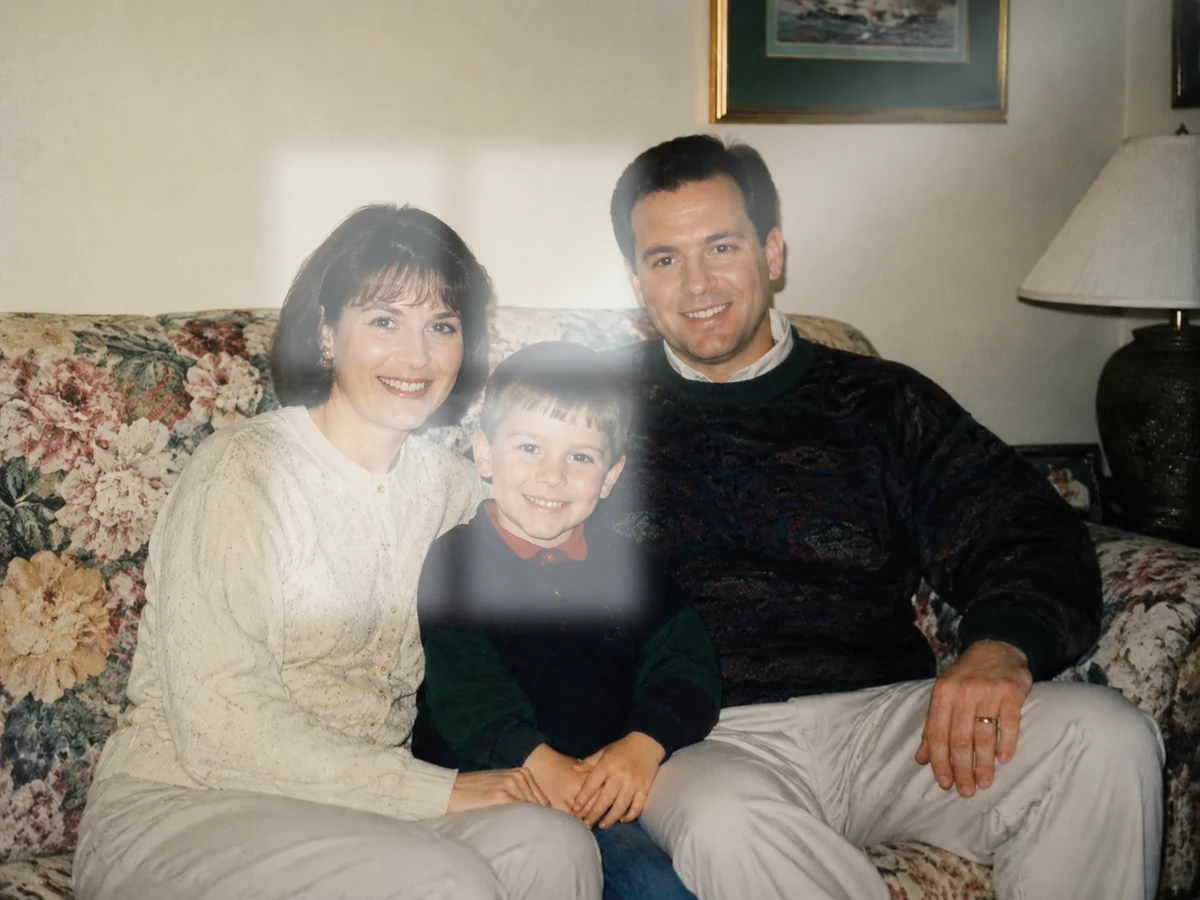
We added a bright window reflection and a sheen to one of our own family-photo samples, the way glass over a print looks when you photograph it. After removal, the faces and sweaters under the reflection match the original again; inside the reflection the average difference dropped from 50 to 6. This reflection was added digitally. Real photos of framed prints often have stronger, uneven glare.

Flash Glare on a Notebook Page (Glare Added for This Test)

We added a flash hotspot to one of our own notebook photos. After removal, the page is evenly lit and the handwriting under the glare is the same, word for word, because it was still readable through the glare. If glare washes a word out completely, the tool cannot bring that word back.

Lamp Glare on a Screenshot (Glare Added for This Test)

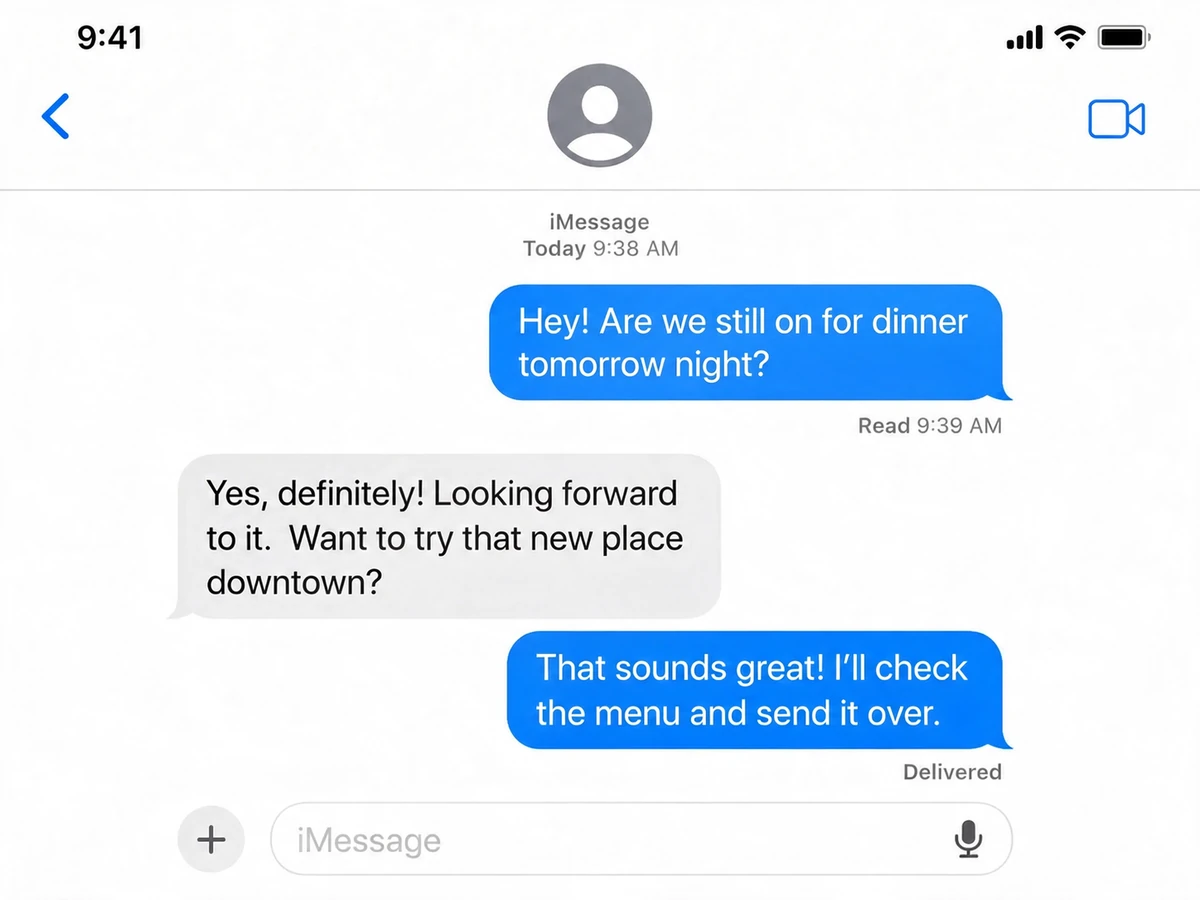
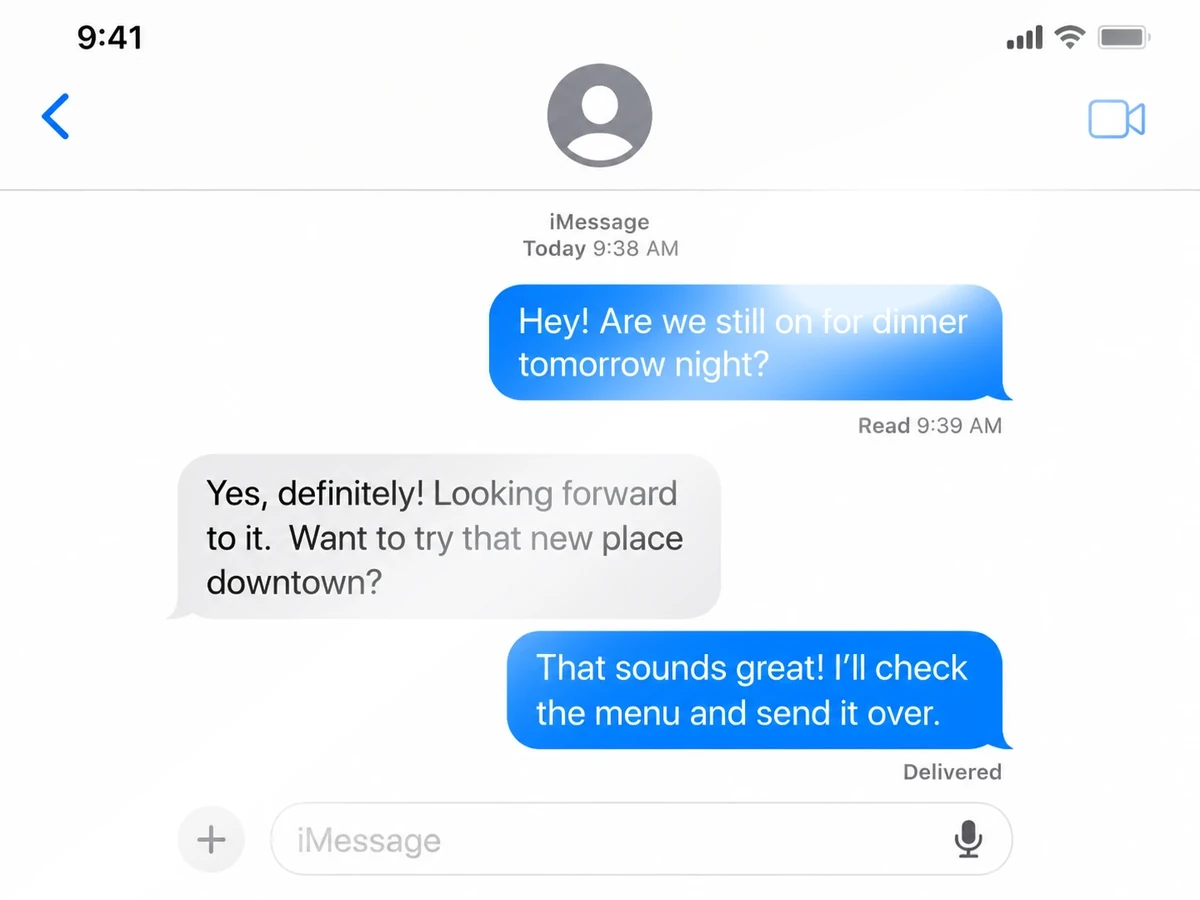
We added a soft lamp reflection to one of our own chat screenshots, like photographing a phone screen under a light. After removal, the message bubbles are back to their original colors and every word stays readable; inside the glare the average difference dropped from 38 to 9.

Where the Glare Remover Falls Short

The tool reduces glare; it cannot see through it. When glare or a reflection fully covers something, the model fills that area with a plausible guess. These four results from the same test show what that looks like, including two that failed.

A Hidden Eye Is Redrawn, Not Recovered (Glare Added for This Test)

Here we put a solid white hotspot over part of one eye. The glare is gone and the eye looks natural, but the part of the iris that was under the hotspot was painted in by the model. It looks close to the original, yet it is a guess. Do not use the tool to restore eyes for ID photos or anything where the exact eye matters. Base photo: MrCambiata, Wikimedia Commons, CC BY-SA 4.0; modified by us and shared under the same license.
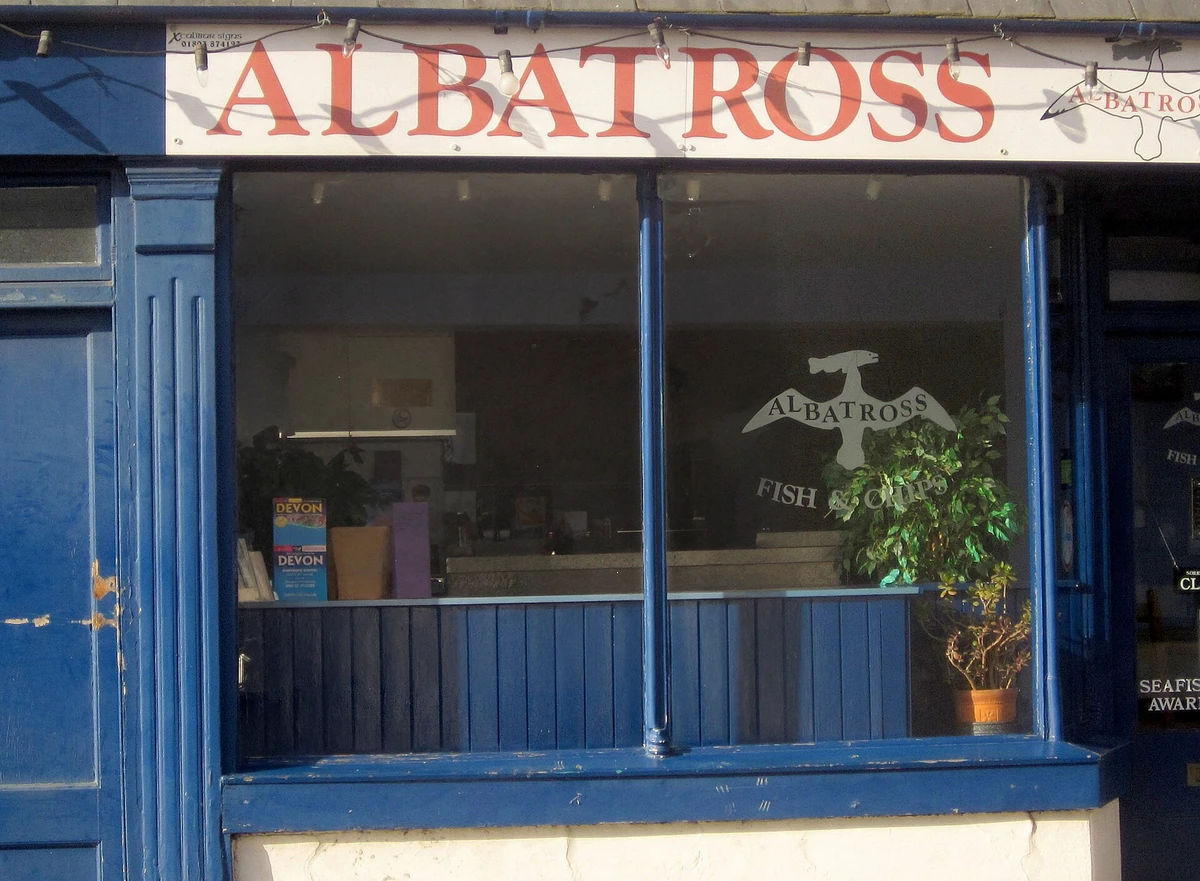
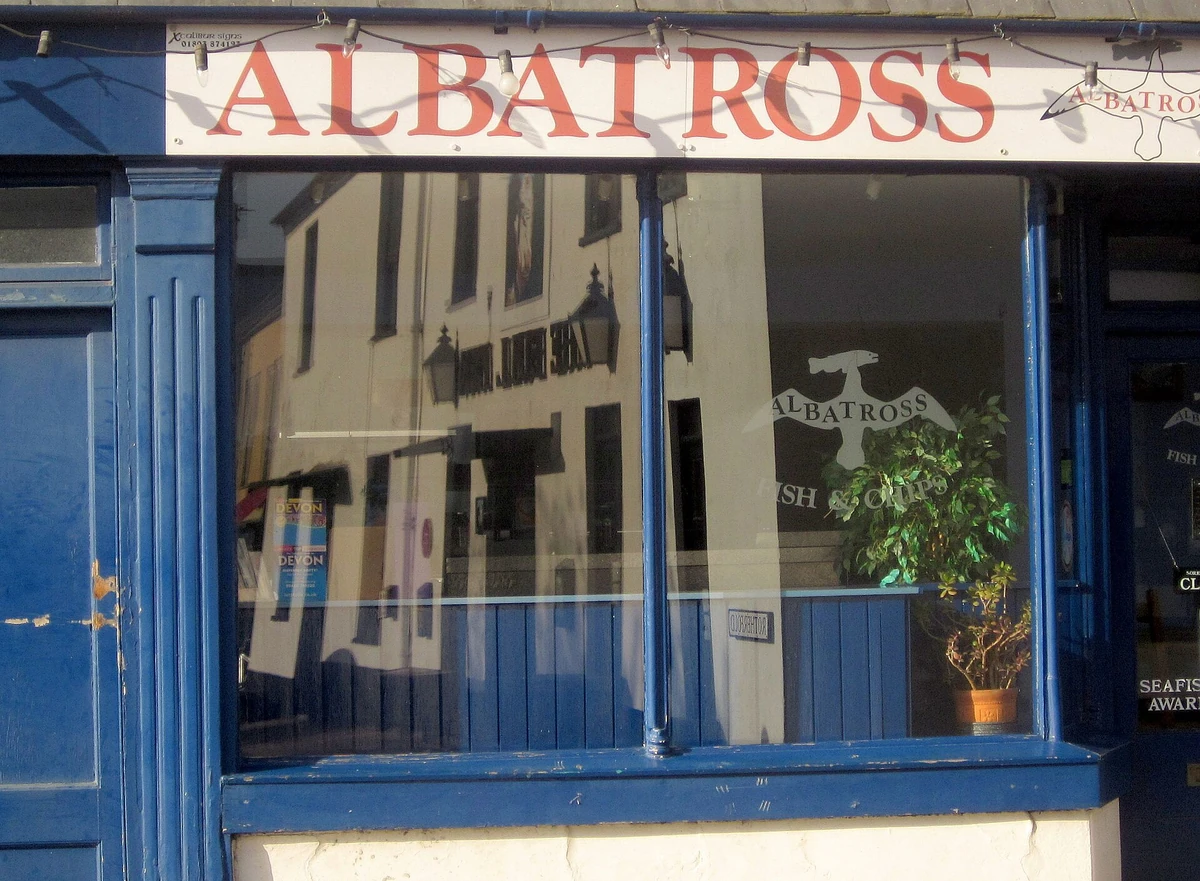
Shop Window: Reflection Removed, Interior Repainted

A real photo of a shop window with the street reflected in the glass. The reflection is gone and the sign above is unchanged, but the shop interior behind the glass was mostly hidden by the reflection, so what you see there now was painted in by the model. About a quarter of the pixels changed. It looks plausible; it is not what was really in the shop. Photo: Derek Harper, Wikimedia Commons, CC BY-SA 2.0; processed by us and shared under the same license.
Failed: Mirrored Sunglasses

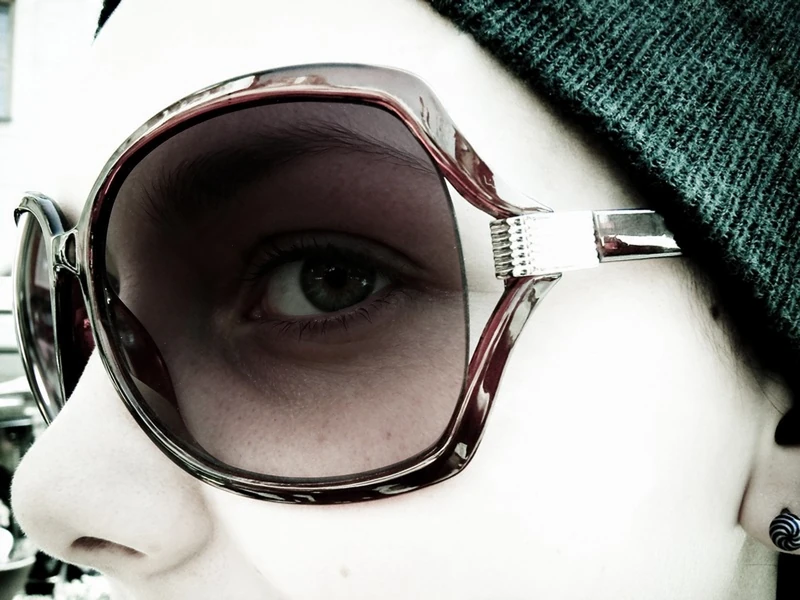
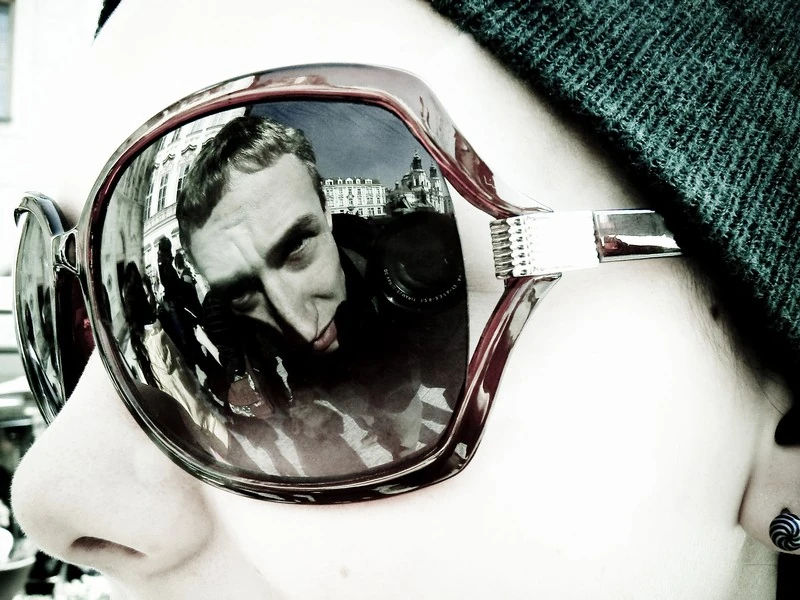
A real photo where a mirrored sunglass lens reflects the photographer and the street, so the eye behind it is completely hidden. The model removed the reflection by inventing an eye that was never in the photo, and two runs on the same image gave the lens two different tints. Mirrored or very dark lenses are not a good fit for this tool. Photo: Philip Bitnar, Wikimedia Commons, CC BY 2.0; processed by us.

Failed: An 1875 Photo Behind Old Glass

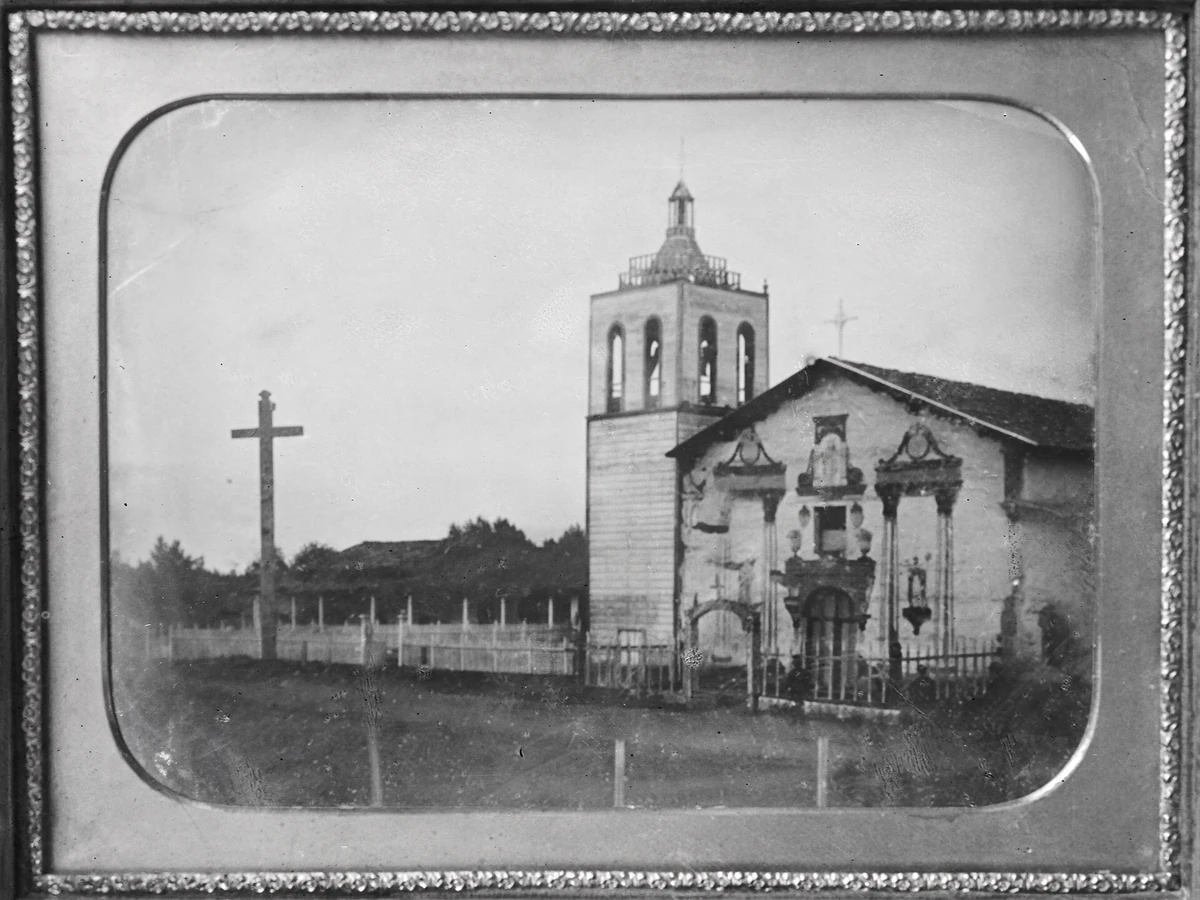
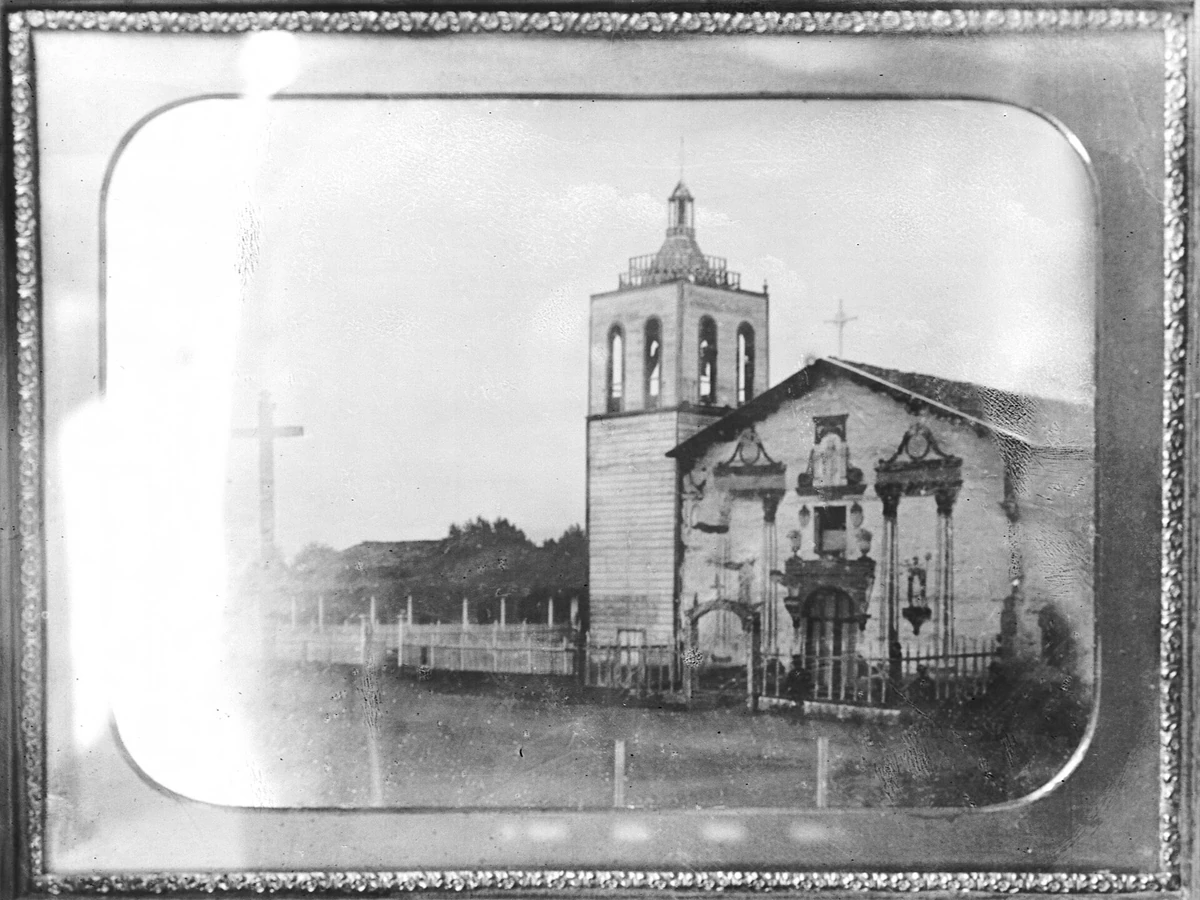
A real copy photo of an 1875 tintype in its frame, with a heavy haze of glare on the left. The haze is gone, but the whole picture came back noticeably darker, about three quarters of the pixels changed, and the cross on the left, which the glare had mostly hidden, was redrawn sharper than the original. For old or historical photos this is a new picture, not a restoration, so keep the original. Photo: George Wharton James, California Historical Society, public domain, via Wikimedia Commons. Other limits: the result downloads as a PNG at about 2.4 megapixels (for example 1792 × 1344 for a 4:3 photo), so it can be smaller than a large original.

Frequently Asked Questions About Removing Glare

01

Can I remove glare from glasses in a photo?

Often, yes, when the glare is partial and the eyes are still visible through the lenses, as in our first example. If a glare spot or a mirrored lens completely covers an eye, the AI paints in an eye that may not match the real one. Check the eyes with the slider before you use the result.

02

Can it recover text hidden under glare?

Only text that is still readable through the glare. In our notebook and screenshot tests, words that showed through stayed the same. Words that glare washes out completely cannot be recovered, and the AI may fill the area with something that looks like text but is not. Do not rely on it for documents where every word matters.

03

Will it remove reflections from a window?

It can remove the reflection, but if the reflection hides what is behind the glass, the AI fills that area with a plausible scene. In our shop-window test the street reflection was gone, but the shop interior was repainted.

04

Can I use it on old photos behind glass?

Try it, but keep your original. On a real 1875 photo behind glass, the glare was removed, but the whole picture came back darker and a detail hidden by the glare was redrawn. For valuable or historical photos, treat the result as a different picture, not a faithful restoration.

05

Does the glare remover change the rest of the photo?

The instruction tells the model to keep everything except the glare the same: faces, eyes, frames, text, colors, lighting, and composition. In our tests with added glare, changes outside the glare were very small. On real photos with large or heavy glare, more of the image can change, so compare before and after.

06

How much does it cost?

Each glare removal uses 1 credit. You can try it without an account. For more images, see our pricing. If a run fails, the credit is returned.

07

What image formats and sizes are supported?

You can upload JPEG, PNG, and WEBP images up to 20 MB. The result downloads as a PNG at about 2.4 megapixels, so very large originals come back at a smaller size.

08

Does it work on iPhone and Android?

Yes. Open cleanremover.com/remove-glare-from-photo in Safari or Chrome, upload a photo from your camera roll, and download the result. There is no app to install.

Also Try CleanRemover Image Tools

Need a different fix? Use Remove Shadow from Photo for cast shadows, cleanup pictures for people and clutter, Remove Object from Image to brush away anything you select, Remove Text from Image for captions and stamps, or return to CleanRemover for watermark cleanup.

Reduce Glare in Your Photo

Upload a photo with glare or a reflection and compare the result before you download it.

Free to try · Works in your browser · No watermark added